Device and browser recommendations
4Next is built with a responsive design, which allows the layout to adjust to the width and height of the viewing area on your device. The scaling (magnification) of your display does affect how much you'll see without scrolling. The higher the magnification, the bigger the letters and spaces, so that a single line of information takes more viewing area.
Supported devices and recommendations
- Modern browsers such as Edge and Chrome are supported. Internet Explorer is not supported.
- Mobile phones are not supported.
- Epic recommends a screen not smaller than 15 inches (measured diagonally), scaled to 100%.
- For devices of less than 15 inches:
- If you are working in Epic, lower the scaling - see next.
- If you're working in standalone 4Next, lower the magnification for your browser.
4Next in Epic - Setting scaling on your device
- Click
 to open the Start menu.
 - Click
 on the lower left to open the Settings window.
 - Click
 Display on the left.
 - If you're using more than one monitor, select the monitor you're using for 4Next.
- Scroll down to the Scale and layout section
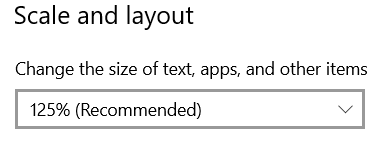
- Click to select a lower percentage from the drop-down list.
4Next standalone - Setting browser magnification
- Keyboard only method: Hold down the CTRL key, and then press the up arrow (↑ or ∧) to increase the zoom, or the down arrow (↓ or ∨) to decrease the zoom.
- Keyboard & mouse method: Hold down the CTRL key, and then scroll the the mouse wheel up to increase the zoom, or down to decrease the zoom.
- Browser menu method
- On the right side of the address line, click to open the browser menu:
- for Chrome click ⋮
- for Edge, click ...
- Click the minus sign (-) in the Zoom section to lower the magnification to 90% or 80%.

↵
 |